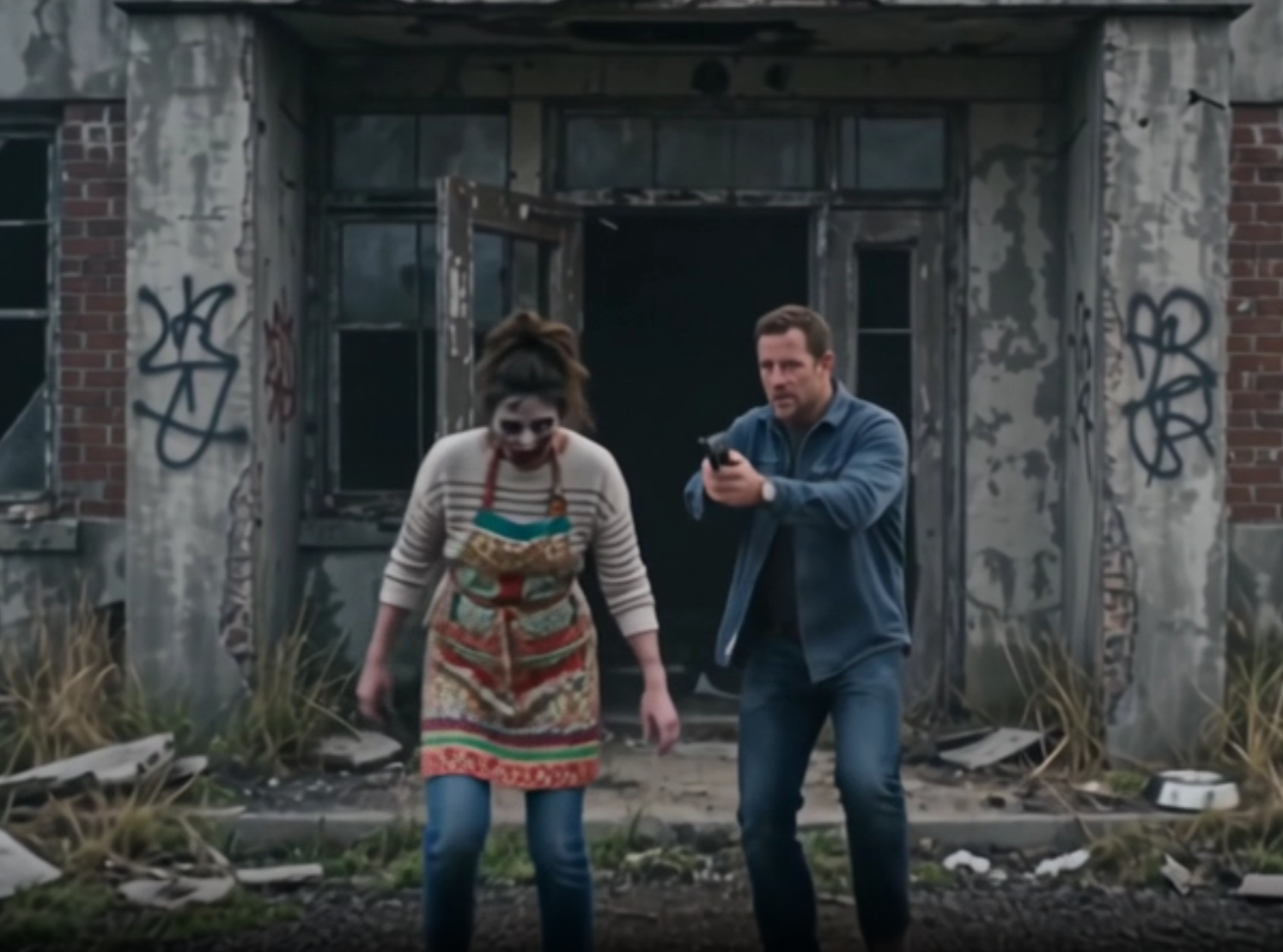
Zombie Love Story AI Video Generator: Turn Two Photos Into a Zombie Couple Video
A zombie love story AI video generator turns two portraits into a cinematic short where an infected loved one walks out of the ruins, is recognized, and turns human again inside a hug. Learn the format, the emotional beats, and the exact workflow on Nano-video.
Overview
The zombie love story is one of the most emotionally efficient short-video formats on the internet right now. It needs no dialogue, no narrator and no visual effects budget. It needs two faces and one idea: love surviving a frightening change.
A zombie love story AI video generator turns that idea into a finished clip. You upload two portraits, and the AI builds a short film where one person staggers out of the infected ruins as a zombie, is recognized by their partner, and slowly returns to human form inside an embrace.
On Nano-video this is a dedicated workflow on the Zombie Couple AI Video generator page — built specifically for the ruins-to-embrace arc rather than being a generic text-to-video prompt you have to hand-tune.
This guide explains why the format works, how the generator is wired, and how to produce a zombie couple video that lands emotionally in 10 to 15 seconds.
Why the Zombie Love Story Format Works
Most horror content relies on fear. This format inverts it. The audience is set up to expect a monster, and is then handed grief and tenderness instead. That reversal is what makes it shareable.
Four beats do the work:
- Recognition — the human partner realizes the figure in the ruins is not a stranger. It is someone they love.
- Shock and sadness — the face they know is buried under decay and pallor. The reaction is grief, not terror.
- Gentle embrace — instead of running, the partner walks in and holds the infected figure.
- Return — inside the hug, the decay fades. Skin clears, wounds close, eyes become human again.
The emotional payoff is the transformation inside the hug, not a cutaway. If the clip cuts before the change completes, the format loses its punch.
That is also the single hardest thing to get from a generic AI video tool: holding two consistent characters in one frame through a slow, gradual physical change.
What a Zombie Love Story AI Video Generator Actually Does
The term covers three different things in practice, and it is worth knowing which one you are getting:
- A prompt-only text-to-video tool. You describe everything yourself. Maximum freedom, minimum consistency, and getting the same two faces into the same shot is largely luck.
- A template preset. The scene and motion are fixed, and you mostly supply the characters.
- A purpose-built workflow. The model is pre-configured for one story shape, and the interface is designed around it.
The Zombie Couple AI Video generator on Nano-video is the third kind. The story arc, the character roles, the framing and the transformation are already defined, so your only job is supplying the two people in the story.
How the Zombie Couple Workflow Is Wired
The generator strips the format down to the two things that decide whether it works: who the characters are, and what happens between them.
Two photo slots, two fixed roles
- Photo 1 — the infected character. This person becomes the zombie in the video.
- Photo 2 — the human partner. This person stays human through the embrace.
The roles are locked, not swappable in the middle of a render. Upload order decides identity, so put the person who should turn into the zombie in the first slot.
A fixed cinematic prompt
The story prompt is pre-written and locked inside the workflow. It already describes the full arc: the zombie walking out of an abandoned building, the human partner raising a gun with tears in their eyes, lowering it, stepping forward into an embrace, and the infected character reverting to human form under bright sunshine.
You are not asked to engineer that prose. Because the prompt is fixed, every render follows the same narrative structure — which is exactly what makes the output consistent enough to publish as a series.
16:9 widescreen output
The ruins-to-embrace arc needs horizontal space: the wide shot of the ruined location, the approach, the two-person embrace. The workflow outputs 16:9 widescreen so the walk-out has room to establish the scene before the embrace compresses the frame.
10 to 15 seconds
The default runtime is 10 seconds, which fits the arc cleanly:
| Segment | Time | What happens |
|---|---|---|
| Walk-out | 0–3 s | The zombie emerges from the ruins and steps forward |
| Conflict | 3–6 s | The human partner aims a gun, tears welling up |
| Embrace | 6–8 s | The gun is lowered, arms open, the two hold each other |
| Return | 8–10 s | The infected character reverts to human, both smiling in sunlight |
Longer runtimes let the transformation breathe, but 10 seconds is the version that performs best in feeds.
Step-by-Step: Make a Zombie Couple Video From Two Photos
Step 1 — Open the generator
Go to the Zombie Couple AI Video generator. The Zombie Couple AI Video model is already selected, so the input area is configured for the two-photo, fixed-prompt workflow the moment the page loads.
Step 2 — Upload the two portraits
- Click Photo 1 and upload the person who should become the zombie.
- Click Photo 2 and upload the person who should stay human.
Both slots are required. Clear, front-facing, well-lit portraits give the model the most to work with when it has to hold a face steady across both the infected and human states.
Step 3 — Set duration and resolution
Leave the default 10 seconds for a standard social cut, or extend it if you want the transformation to play out more slowly. Higher resolution costs more credits and takes longer to render; the default is tuned for fast social turnaround.
Step 4 — Generate
Click Generate. The clip renders with the story arc already baked in — you do not need to write or edit a prompt. Download the MP4 when it finishes and post it directly.
Tips for a Zombie Couple Video That Reads Well
Even with a fixed workflow, input quality decides output quality.
- Pick portraits with visible faces. A clear, evenly lit headshot survives the zombie transformation far better than a distant group photo.
- Avoid heavy filters and sunglasses. The model needs facial structure it can decay and then restore. Anything that hides the face weakens both ends of the arc.
- Match the two photos in style. If one portrait is a studio headshot and the other is a low-light candid, the two characters can feel like they belong to different films.
- Keep the infected look restrained. Subtle decay, tired eyes and pale skin read as tragic. Heavy gore reads as comedy and breaks the emotional beat.
- Let the transformation finish. If your runtime is short, extend it rather than accepting a cut that lands before the character returns to human.
If you want to explore the broader multi-character storytelling space, the same platform offers a Hotel Lobby AI Video generator for duo rap clips, plus general-purpose text to video and image to video workspaces for free-form briefs.
Prompt Ideas If You Build the Scene Yourself
The dedicated generator handles the arc for you. If you would rather script your own variation with a general-purpose model, these starting points cover the same emotional territory in different settings:
- Collapsed apartment block. A zombie staggers out of a collapsed apartment building, dust hanging in the air. Their partner runs forward and holds them. As they embrace, the pallor drains away and their skin returns to normal. 16:9, cinematic, emotional.
- Overgrown street. An infected figure walks out of a vine-choked abandoned street. A woman is waiting and crying. They embrace, and during the hug the vacant expression softens into recognition. Golden hour.
- Shattered mall entrance. Two people meet in front of a broken shopping mall, glass and rubble underfoot. They hold each other, and the infected features gradually restore to human. Soft piano mood.
- Rain-soaked ruins. A zombie emerges from a ruined building, soaked through. The partner rushes in for a hug, and as the rain falls the infection washes away — skin clears, wounds close, a calm human expression returns.
The recurring structure is always the same: setting → walk-out → recognition → embrace → return.
Common Mistakes to Avoid
- Two characters, one identity. If both faces drift into the same person mid-clip, the story collapses. This is the main reason to use a workflow with dedicated per-character reference slots instead of a single generic image input.
- Cutting before the return. The transformation is the payoff. A clip that ends at the embrace is only half a story.
- Overdoing the horror. The format works because the audience still recognizes the person inside the monster. Push the decay too far and you lose that.
- Ignoring the setting. The ruins give the walk-out meaning. Without a visible destroyed environment, the character is just walking.
- Rushing the hug. The longer the camera holds on the embrace, the more the gradual change registers. Speed cuts work against the format.
Frequently Asked Questions
What is a zombie love story AI video generator? A tool that turns two portraits into a short cinematic clip about love surviving a frightening change — a zombie walks out of the ruins, is recognized by their partner, and returns to human form inside an embrace.
Can I make a zombie couple video from just two photos? Yes. On the Zombie Couple AI Video generator you upload exactly two portraits: one becomes the infected character, the other stays human. No prompt writing is required.
How long should a zombie love story video be? 10 to 15 seconds in 16:9 widescreen. Let the walk-out establish the scene in the first few seconds, land the embrace around the midpoint, and give the transformation the final stretch.
How does the zombie turn back into a human? The change happens during the embrace. As the two hold each other, the decay fades — skin returns to a normal tone, wounds close, and the eyes become clear and human again.
Do I need to write a prompt? No. The story prompt is built into the workflow and locked, so every render follows the same arc. That is what keeps a series of clips visually and narratively consistent.
Can I use the result commercially? Paid plans on Nano-video allow commercial use of generated videos. Check the platform and model terms for your specific use case before publishing paid work.
Related Reads
- Want a completely different two-person format? See the Hotel Lobby AI Video guide for duo rap clips in a locked studio scene.
- Working with longer, higher-resolution cuts? Read the Seedance 2.5 feature guide.
- Comparing fast social models for audio-native output? Review Grok Imagine Video 1.5.
- Ready to generate your first zombie couple video? Open the Zombie Couple AI Video generator, upload two portraits, and click Generate.
Autor

Más publicaciones

Seedance 2.5 Feature Guide: 30s Generation, 4K Output, and Local Redraw
Seedance 2.5 supports 30-second generation, native 4K 10-bit output, up to 50 reference assets, and local redraw for commercial video workflows.

Nano Banana Pro AI Image Generator Guide: High-Resolution Output, Multi-Image Batches, and Commercial Workflows
Nano Banana Pro is a high-fidelity AI image generator with 1K/2K/4K output, multi-image batch generation, and accurate text rendering. Learn how to use it on Nano-video's AI Image workspace.

Veo 3.1 AI Video Generator Guide: Native Audio, 4K Output, and Fast-to-Quality Workflow
Veo 3.1 is Google's AI video generator with native audio, 4K output, and two modes — Fast for quick iteration and Quality for polished final renders. Learn how to use it on Nano-video.
Boletín
Únete a la comunidad
Suscríbete a nuestro boletín para recibir las últimas noticias y actualizaciones